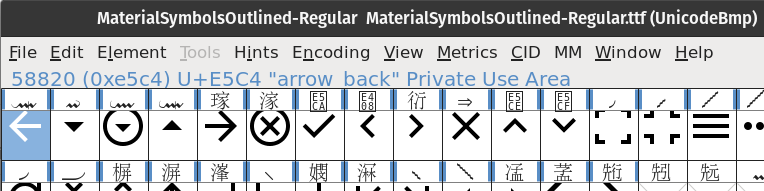
In the latest firmware for Presto, the included main.py demo switched from using polygon paths for the icons, to using a font to render the icons. The included font file is called “Roboto-Medium-With-Material-Symbols.af” so it is a combination of Roboto with what I presume to be a selected few icon glyphs from Material symbols.
I am interested in using this same approach in my own apps, so I tried using the included font in my own scripts but using different code points (that can be looked up in Material symbols website), but I can only get the same icons that are used in the original main.py to work (hence the mentioned “ I presume to be a selected few icon glyphs”).
Does anybody know how I can build my own font file with the icons I want?
I have already looked into the alright-fonts project GitHub - lowfatcode/alright-fonts: The font format designed for embedded and low resource platforms.
And I tried to create my own with their command line tool, by downloading Material symbols ttf file and then calling the afinate tool on command line, for example like this (to get the arrow back icon):
./afinate --characters $'\ue5c4' --font MaterialSymbolsOutlined-Regular.ttf material-test.af
But it gives this output:
> loading font MaterialSymbolsOutlined-Regular.ttf
  - bounding box -1.567901234567901, -11.88991769547325 -> 126.99999999999999, 125.56275720164608
  - scale factor 0.131
> extracting 1 glyphs
  \u58820 missing or not printable, skipping
> write output file in <built-in function format> format
No printable glyphs - stopping.
Trying to output normal characters works and also referencing them with code points, e.g. this works to output “A”:
./afinate --characters $'\u0041' --font MaterialSymbolsOutlined-Regular.ttf material-test.af
> loading font MaterialSymbolsOutlined-Regular.ttf
  - bounding box -1.567901234567901, -11.88991769547325 -> 126.99999999999999, 125.56275720164608
  - scale factor 0.131
> extracting 1 glyphs
  \u0065 'A' :  2 contours /  11 points
> write output file in <built-in function format> format
  - header
  - glyph dictionary
  - glyph contours
> output file size 45 bytes and contains 1 characters (avg. 45 bytes per character)
Also, if I manage to get this icon stuff working, would be interested to know how to combine the icons with a regular font like Roboto, as the example one is done.